Record training videos instantly with our Loom integration
With our Loom integration, you can record and insert videos directly into your Coassemble courses — making it faster and easier to create engaging, personalized training content without leaving the platform.
We’re excited to introduce our latest integration with Loom available for all users. This integration offers a quick and seamless way to record videos directly inside Coassemble. Whether you’re walking through a process, delivering onboarding content, or sharing updates, you can now capture and insert videos without ever leaving your course.
Why use Loom with Coassemble
No uploads required – Forget downloading, trimming, or re-uploading video files. With Loom, you can record directly in Coassemble and drop your video into a course in seconds.
Keep it personal – Add a human touch to your training with face-to-face recordings, voiceovers, and screen shares.
In the flow of work – Record, edit, and insert videos right where you build learning. No need to switch between tools.
Capture processes in minutes – If you need to demo a software process, a video walkthrough is often the quickest way.
How to record with Loom in Coassemble
Step 1: Add a video screen
From inside your course, select Add screen. Choose Video screen. A placeholder video will appear.
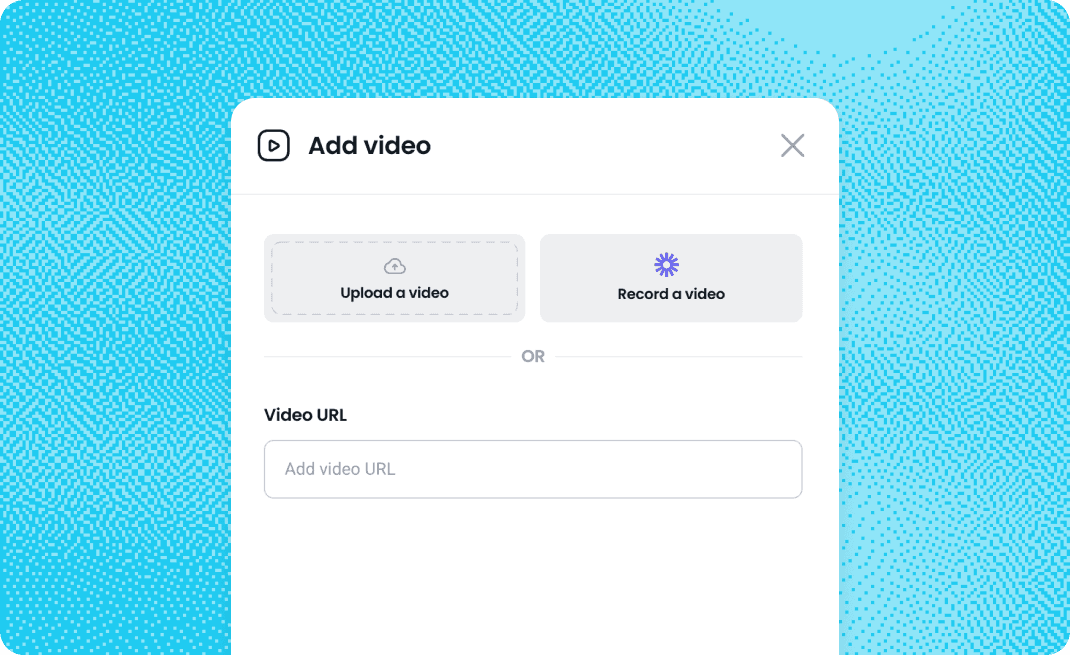
Step 2: Replace the placeholder
Select Replace video at the top of the screen. In the Add video modal, select Record a video instead of uploading.
Step 3: Allow permissions
The first time you record, you may need to allow access to your camera and microphone. For example, with Google Chrome, you may need to select Allow while visiting the site or Allow this time when prompted.
Step 4: Launch Loom
Loom will pop up with a quick tour of the controls and settings. When ready, select Start recording.
You’ll then choose to record one of the following options:
Your entire screen
A specific window
A specific Chrome tab
Click Share, and your countdown (3, 2, 1) begins.
Step 5: Control your recording
Use the bottom-left controls to pause, stop, restart, or delete your recording.
Step 6: Insert your video
Once finished, your Loom video will generate a URL.Select Done to insert it into your course.
Browser requirements
Loom recording is supported in these browsers:
Google Chrome v90+
Microsoft Edge v90+
Brave v1.22+
If you’re using another browser, the Loom option will not appear.
Troubleshooting
If you’re having issues recording:
Review Loom’s troubleshooting guide.Ensure third-party cookies are enabled and check for ad blockers, which can cause issues.
Loom video limits
You can record up to 5 videos before being required to register for a free Loom account. Loom’s video limits will then apply.